# Introduction

Welcome to the Documentation for Infinity Void

We are excited to introduce you to Infinity Void,  a cutting-edge Platform for the open and interoperable virtual world. Infinity Void offers Platform-as-a-Service (PaaS) that empowers developers, businesses, and organizations to transcend traditional limitations and embrace the limitless potential of the digital realm. This comprehensive documentation serves as your compass, guiding you through the intricate landscape of Infinity Void's capabilities, features, and best practices.

## What is Infinity Void?

Infinity Void is a platform for open and interoperable metaverses. It isn't just another PaaS—it's your direct route to hassle-free innovation. Focus solely on your creativity while we handle the complexities of infrastructure.

**Core Advantages**

* **Singular Metaverse City:** All experiences coexist within a unified 3D shared world—a singular metaverse city. With multiple access points, incoming traffic from any of the experiences hosted on the platform benefits others, creating a dynamic ecosystem where interactions ripple through different virtual domains, enriching the entire metaverse.
* **Cross-Platform Availability:** Infinity Void seamlessly spans across platforms, from web to mobile to desktop. Your applications maintain consistency and functionality, no matter where they're accessed.
* **Instant No Code Multiplayer Capabilities:** Develop interactive multiplayer experiences without the hassle. Infinity Void provides the tools you need for creating engaging and responsive multiplayer functionalities.
* **Real-time Communications:** Enable real-time communication between users, devices, and services. Infinity Void's real-time capabilities empower your applications to deliver instantaneous updates and interactions.
* **Effortless Scaling:** As your user base grows, Infinity Void effortlessly scales your resources to accommodate increased demand. Your applications remain responsive and performant, adapting to changing needs seamlessly.
* **Cloud Distribution at No Additional Cost:** Distribute your applications globally without worrying about additional costs for cloud distribution. Infinity Void includes Pixel Streaming (cloud distribution) as a core feature, expanding your reach without straining your budget.
* **No Code Creator Toolkit:** Unlock creativity with Infinity Void's No Code Creator toolkit. Build functional prototypes and even complete applications without traditional coding, accelerating your development cycles and fostering innovation.
* **Plugin for Unreal Engine Integration:** Elevate your game development with Infinity Void's dedicated plugin for Unreal Engine. Seamlessly integrate your Unreal Engine application within the Infinity Void platform using our noninvasive connector plugin.
* **Robust Creator Economy System:** Empower landowners, developers, and artists with a sophisticated economy system. Generate revenue streams through virtual land ownership, collaborative development opportunities, and artistic contributions, creating a thriving ecosystem for all stakeholders.

  &#x20;


# Core Principles

Welcome to the Core Principles of Infinity Void, where we unveil the guiding pillars that define the essence of our groundbreaking metaverse platform. As we embark on a journey of reimagining digital.

**01. Persistency Among Worlds**

Dive into the concept of persistency, a revolutionary approach that breathes life into our metaverse. In this section, we delve into how Infinity Void is rewriting the rules, allowing users to seamlessly carry their identity, preferences, and data across the vast tapestry of virtual worlds. Witness the transformation as we bridge the gap between isolated experiences, creating a unified and immersive environment that revolves around you.

{% content-ref url="/pages/xTEvA1dghu78dayHd5El" %}
[01. Persistency Among Worlds](/infinity-void-metaverse/core-principles/01.-persistency-among-worlds)
{% endcontent-ref %}

\
**02. Global Cross-Platform Accessibility**

Discover how we are breaking down barriers with our commitment to global cross-platform accessibility. In this segment, we shed light on our unwavering determination to enable users worldwide to access our metaverse from an array of devices, regardless of their operating systems or hardware. Immerse yourself in a world where boundaries vanish, and experiences flow seamlessly across devices.

{% content-ref url="/pages/WcquewKRVmjY2ZuaFGPo" %}
[02. Global Cross-Platform Accessibility](/infinity-void-metaverse/core-principles/02.-global-cross-platform-accessibility)
{% endcontent-ref %}

\
**03. Singular Metaverse City**

Unveil the heart of Infinity Void—the Singular Metaverse City. Here, we explore our mission to create a virtual hub that transcends limitations, weaving a tapestry of interconnected worlds. Delve into the possibilities of navigating effortlessly between diverse digital environments, opening doors to uncharted realms of exploration, collaboration, and boundless creativity.Unveil the heart of Infinity Void—the Singular Metaverse City. Here, we explore our mission to create a virtual hub that transcends limitations, weaving a tapestry of interconnected worlds. Delve into the possibilities of navigating effortlessly between diverse digital environments, opening doors to uncharted realms of exploration, collaboration, and boundless creativity.

{% content-ref url="/pages/mCpZkMdTBjYK17GPITUd" %}
[03. Singular Metaverse City](/infinity-void-metaverse/core-principles/03.-singular-metaverse-city)
{% endcontent-ref %}


# 01. Persistency Among Worlds

Welcome to the exploration of Infinity Void's first core principle—Persistency Among Worlds. In this chapter, we delve deep into the revolutionary concept that reshapes how you interact with the digit

**What is Persistency Among Worlds?**

Traditionally, digital experiences have been confined within silos, each platform or virtual world operating independently. With Persistency Among Worlds, Infinity Void introduces a paradigm shift. Imagine a seamless transition as you traverse between virtual environments, carrying your identity, preferences, and data with you. From a serene medieval village to a futuristic space station, you remain you—a user-centric approach that turns isolation into continuity.

**Experiences Built in Infinity Void**

You might be wondering, "Are experiences built in Infinity Void automatically persistent?" The answer is yes. When experiences are constructed within Infinity Void, the persistency is inherent. Your digital journey becomes an unbroken thread across different virtual worlds, enhancing the depth and richness of your interactions.

**Freedom of Development**

However, we're not here to dictate the tools you use. Infinity Void doesn't confine you to a specific development framework. You're free to employ tools like Unreal Engine, Unity, or others that resonate with your creative process. Here's where our Connector plugin comes into play. This plugin ensures that the experiences you craft outside of Infinity Void become seamlessly persistent within our platform.

**Your Identity, Your Continuity**

The Connector plugin bridges the gap between your external development tools and our metaverse. It harmonizes your creations, granting them the power of persistency that Infinity Void champions. Your in-game achievements, interactions, and relationships transcend individual experiences, creating a holistic journey through the metaverse.

Persistency Among Worlds transforms disjointed virtual environments into a harmonious, continuous tapestry of experiences. As you journey through the realms of Infinity Void, let this principle guide you toward a digital landscape where you're the constant, and the worlds are your canvas.

Onward to the next chapter as we uncover more of Infinity Void's core principles.


# 02. Global Cross-Platform Accessibility

Welcome to the second core principle of Infinity Void-Global Cross-Platform Accessibility. In this chapter, we unveil how our commitment to accessibility empowers you to experience our metaverse

**The Power of Pixel Streaming Technology**

At the heart of our Global Cross-Platform Accessibility lies the revolutionary Pixel Streaming Technology. This cutting-edge solution bridges the gap between devices, delivering high-quality graphics and interactions directly to your browser. It's the key that unlocks the door to a world of immersive experiences without the limitations of hardware or software.

**Why Global Cross-Platform Accessibility Matters**

Imagine a world where the device you use doesn't limit your interactions within the metaverse. At Infinity Void, we envision this reality. Our platform is built with the belief that the metaverse should be universally accessible, available and affordable transcending the confines of hardware or software.

**Access, Anytime, Anywhere**

Whether you're on a desktop, smartphone, tablet, or any device with a browser, Infinity Void is accessible to you. The days of needing specific hardware or operating systems are behind us. Dive into the metaverse from the comfort of your preferred device, without compromising on quality or experience.

**Empowering Inclusivity**

Global Cross-Platform Accessibility isn't just about devices—it's about people. We're dedicated to enabling a diverse community to come together in the metaverse. Friends, colleagues, and collaborators, regardless of their tech choices, can share experiences seamlessly. It's an embodiment of inclusivity that shapes our metaverse's social fabric.

**A Seamless Transition**

When you shift between devices, the magic of Infinity Void doesn't falter. Imagine starting an experience on your computer and seamlessly continuing it on your phone during your commute. This uninterrupted transition underscores our commitment to harmonious interactions within the metaverse.

**Quality Without Compromise**

Global Cross-Platform Accessibility doesn't equate to compromises. Your experience remains immersive and engaging, regardless of the device you're using. The content, interactions, and connections you cherish are consistent, fostering a sense of continuity no matter where you are.

**A World Without Boundaries**

Infinity Void's metaverse isn't just a place—it's a shared world. The Global Cross-Platform Accessibility principle embodies our philosophy of erasing boundaries and making connections effortless. As we journey together, we're not just exploring a metaverse; we're forging a new standard of unity and accessibility.


# 03. Singular Metaverse City

Welcome to the exploration of Infinity Void's third core principle—Singular Metaverse City.

**Vaikunth: Singular Metaverse City**

Imagine a sprawling city that serves as the epicenter of Infinity Void's metaverse—a place where realms coalesce, ideas intermingle, and connections flourish. The Singular Metaverse City is our vision of a unified, dynamic environment that blurs the lines between distinct virtual experiences.

**An Ecosystem of Connection**

Each experience crafted within Infinity Void acts as an access node to our metaverse. These nodes are more than mere portals; they are the threads that weave a cohesive fabric. All experiences coexist within a singular 3D shared world—the Singular Metaverse City. This integration transforms isolated domains into a bustling ecosystem, where interactions and actions in one realm reverberate throughout others.

**Collaboration in Action**

Picture this: a player's actions in an adventure game influencing a concert happening across the digital city. Collaborative action is the heartbeat of the Singular Metaverse City. When you create, engage, or even just explore, you're contributing to the vibrant energy that flows through this shared space, enriching the entire metaverse.

**Multiple Access Points, One Dynamic Ecosystem**

The beauty of the Singular Metaverse City lies in its multifaceted access points. Each experience introduces new pathways, new stories, and new possibilities. Whether you're entering from a social space, a virtual art gallery, or a competitive game arena, your presence influences and shapes the greater whole.

**A Ripple Effect of Interactions**

Incoming traffic from any experience benefits others, fostering a dynamic ecosystem. Actions taken in one corner of the city send ripples through different virtual domains, creating an ever-evolving narrative that engages and captivates.

**A Living, Breathing City**

The beauty of Vaikunth lies in its interconnectedness. As one experience grows, it casts a positive influence on others. Imagine a virtual art gallery gaining popularity, drawing in curious explorers. With this influx of traffic, neighboring spaces, whether they're competitive arenas, collaborative workspaces, or social hangouts, also experience heightened engagement. This symbiotic relationship fosters growth, ensuring that the vibrancy of one corner reverberates throughout the entire metaverse.

**Building a Boundless Horizon**

The Singular Metaverse City embodies our dedication to fostering unity, diversity, and limitless innovation. As you navigate the interconnected streets of this city, remember that you're not just exploring virtual spaces—you're part of a transformative movement that defies traditional boundaries and constructs.

Join us as we step into the Singular Metaverse City—a virtual hub where your presence matters, your actions resonate, and your creativity shapes the metaverse of tomorrow.


# Hardware Requirements

These are the minimum system specs required to successfully run Infinity Void

Infinity Void Metaverse can be accessed either through browser.

## Browser Client

Mentioned below are the minimum technical requirements for the browser client.

To ensure optimal performance, the device should be connected to a high-speed internet and a low network latency.

Download Speed: 10 Mbps

Device&#x73;**:** Any device (desktop, laptop or mobile) can access the browser client. This includes devices that run on Windows, MacOS, Linux, Android and iOS.

Browser: Our browser client runs on WebRTC supported browsers:

* Chrome / Chromium / Chrome Android / Chrome iOS 72+
* Firefox 68+
* Safari 12 +
* Edge 79+
* Edge Chrome 72+
* iOS 12+
* Opera 63+
* Android 9+
* Samsung browser&#x20;


# Frequently Asked Questions

Have some questions? Check out some frequently asked questions!

### What equipment or software do I need to play in Infinity Void? <a href="#what-equipment-or-software-do-i-need-to-play-in-decentraland" id="what-equipment-or-software-do-i-need-to-play-in-decentraland"></a>

You can check hardware requirements from [here](/infinity-void-metaverse/hardware-requirements).

* **Can I play on a mobile device?**\
  Yes.
* **Can I log in from multiple computers?**\
  Yes, you can run Infinity Void from multiple computers.
* **Can I use a different browser?**\
  While it may be technically possible to use another browser than [supported](/infinity-void-metaverse/hardware-requirements#browser-client), we don't recommend this since it might have unexpected results.

### Do I need a wallet to play in Infinity Void? <a href="#do-i-need-a-wallet-to-play-in-decentraland" id="do-i-need-a-wallet-to-play-in-decentraland"></a>

If you want to fully enjoy the Infinity Void experience, we recommend you get yourself a digital wallet. Digital wallets work as your personal account, keeping all your digital assets (such as names, collectibles, LANDs) and in-world progress safe. However, you can play without having a wallet.

If you choose to experience Infinity Void without a wallet, the information will only be locally stored: you will be able to walk around, customize your Avatar and chat with others in-world, but you won’t have the chance to receive daily rewards, participate in events or log in with a different device using the same ID and Avatar.

### I lost my digital wallet! What happens with my account? <a href="#i-lost-my-digital-wallet-what-happens-with-my-account" id="i-lost-my-digital-wallet-what-happens-with-my-account"></a>

If you lose access to your wallet you will lose your Avatar, name, any of the wearables or NFT items stored within. Please remember to store your wallet recovery pass phrases in a safe and secure location and have a backup in place.

### What is Finity? <a href="#what-is-mana" id="what-is-mana"></a>

Finity is Infinity Void’s fungible, ERC20 cryptocurrency token on on the Polygon network.  The Finity token is burnt or spent in exchange for in game assets.

### Can I claim my Avatar name later? <a href="#can-i-claim-my-avatar-name-later" id="can-i-claim-my-avatar-name-later"></a>

Yes. Visit the [Mint Unique Name page](https://mint.infinityvoid.io/) to mint it. All you need is an installed digital wallet. If the name you require is already minted you can try buying it from the  [secondary market](https://opensea.io/collection/infinity-void-names).

### How can I report a player? <a href="#how-can-i-block-or-report-a-player" id="how-can-i-block-or-report-a-player"></a>

We are still working on an artificial intelligence-based player reporting and blocking system. Therefore, we request you to mail us at <admin@infinityvoid.io>, if you wish to report and block any player.

### What is LAND? <a href="#what-is-land" id="what-is-land"></a>

A Virtual Land Parcel is a digital piece of real estate in Infinity Void's metaverse. These parcels are permanently owned by the users and developers. These virtual land parcels can be purchased from the official website or NFT marketplaces. This gives users full control over the environments and applications that they create.&#x20;

### How can I buy LAND in Infinity Void? <a href="#how-can-i-buy-land-or-estates-in-decentraland" id="how-can-i-buy-land-or-estates-in-decentraland"></a>

You can visit the [Map](https://map.infinityvoid.io/) page to buy currently available virtual land from Infinity Void. You can also buy land from the [second market](broken://pages/plRpRxrnm8zjryMzDVTK).

### What does ‘owning’ virtual LAND mean and how does it work? <a href="#what-does-owning-virtual-land-mean-and-how-does-it-work" id="what-does-owning-virtual-land-mean-and-how-does-it-work"></a>

LAND within Infinity Void is represented by non-fungible tokens (meaning that each is unique and cannot be replicated) that track ownership on the Ethereum blockchain. Owning LAND within Infinity Void is akin to owning any other unique, crypto asset like [Bored Ape Yatch Club](https://boredapeyachtclub.com/) or [CryptoPunks](https://www.larvalabs.com/cryptopunks), however you will be able to use your LAND within Infinity Void to build three dimensional spaces and applications. LAND is built on our [ERC721](https://github.com/decentraland/erc721) standard, making it a digital asset that can be traded with other users, like other digital assets.

### I need support! Where can I contact you? <a href="#i-need-support-where-can-i-contact-you" id="i-need-support-where-can-i-contact-you"></a>

Join our [Discord](https://discord.gg/6Hyg7HbbNN) and visit our #support-ticket channel to create a ticket and  ask whatever questions you have. We’ll answer as soon as possible. Our friendly community members can help too. While you’re there why not check out some of the other channels to learn more about Infinity Void?


# Glossary

Have some questions? Check out some frequently asked questions!

## Virtual Land Parcels

The finite, traversable, 3D virtual city within Infinity Void is called Vaikuntha City *(meaning: abode of the divine)*. Vaikuntha city is divided into sectors consisting of virtual land parcels identified by unique plot numbers. Users can purchase virtual land from Infinity Void [official website](https://mint.infinityvoid.io/)  or from secondary [NFT Marketplaces](broken://pages/plRpRxrnm8zjryMzDVTK). The unique ownership of the virtual land will be transferred from the seller (Infinity Void or other users) to the buyer (user) via a process called minting (creation) of a non-fungible token stored on the Ethereum blockchain. In case the virtual land was owned before by another user it is already minted and it will not be created again but the unique non-fungible token will be transferred to the new owner. In both cases, the buyer of the virtual land will get full control over this land within the virtual world to build on and use or to monetize on it.&#x20;

Each virtual land parcel in Vaikuntha city is accessible for users via roads or teleport functionality. The 3D virtual city consist of all basic infrastructure like roads, landscapes, water bodies, etc.&#x20;

## Unique Name

Unique names are ENS subdomains minted on the Ethereum blockchain.&#x20;

ENS subdomains allow you to set a unique name for your user account avatar. You can mint your personal ENS subdomain (unique name) via <https://mint.infinityvoid.io/ensmint/>. Users that don't mint a unique name will get a name represented by their name with unique number for example: "name#0000" (similar to Discord). Users who mint a unique name will be given that name.  For example, if the users name is Daniel with ENS this will be "Daniel" while without it will be "Daniel#unique number".


# For Content Creators

Welcome to the Infinity Void Content Creator Guide! This comprehensive documentation will help you unleash your creativity within the Infinity Void platform and craft amazing digital experiences. Whether you're a seasoned creator or just starting, this guide is your go-to resource for crafting captivating content.

[Land Parcel Customization](/guides/for-content-creators/land-parcel-customization)

[Unreal Engine SDK](/guides/for-content-creators/unreal-engine-sdk)

[Void Craft](/guides/for-content-creators/void-craft)

[Deploying Scene](/guides/for-content-creators/deploying-scene)


# Land Parcel Customization

## **3D Models: Your Virtual Show Windows**

Imagine your land parcel as a shop on a bustling street. The 3D models you upload act as captivating show windows that passersby can't help but glance into. These models don't possess interactive elements or functionality on their own, but they serve as visual cues, offering a glimpse into the theme or concept of your land parcel. Much like a book's cover, these 3D models entice others to explore what lies within.

## **Bigger Parcels, Greater Visibility**

Just as a larger shop window attracts more attention, the size of your land parcel directly influences the size of your 3D model. Larger parcels grant you more space to showcase your vision, making your "virtual shop window" more noticeable and engaging. This size-visibility connection ensures that your creative efforts don't go unnoticed, drawing in curious explorers to experience what you've crafted.

## **Transition to Your Realm**

When visitors approach the 3D model on your land parcel, they will see an option to "Visit Parcel." This option is like an invitation to enter through the door of your shop and experience what's inside. Clicking on this option initiates a seamless transition into a separate realm—your realm. This realm is a dedicated digital space that you've crafted using Infinity Void's tools. It's here that the scene depicted by your 3D model comes to life.

## **Interactivity Inside Your Realm**

Inside your realm, you have the creative freedom to build an interactive and immersive environment. Picture it as stepping into your shop where visitors can fully engage with the offerings. You can incorporate various elements such as buildings, landscapes, characters, activities, and more. Unlike the 3D model on your land parcel, your realm is not constrained by size or other limitations. It's a canvas for you to realize your creative vision fully.

## **Options for Land Parcel Customization**

We provide you with two distinct options to transform your land into a creative showcase:

1. [**Preset Modular Building**](/guides/for-content-creators/land-parcel-customization/preset-modular-buildings): If you're looking for a hassle-free way to customize your land, you can choose from our preset modular buildings. These ready-to-use structures offer a quick and convenient solution, saving you time and effort while still letting you showcase your unique style.
2. [**Upload Your Own Models**](/guides/for-content-creators/land-parcel-customization/3d-custom-model): For those with a specific vision in mind, you can upload your own custom 3D models. These models serve as the visual gateway to your land parcel, offering a glimpse into the essence of your creation.&#x20;

### Navigating to Settings Page of Land Parcel

Visit [**Dashboard**](https://dashboard.infinityvoid.io/) and navigate to the `Virtual Land Parcel` tab.

<figure><img src="https://3066305863-files.gitbook.io/~/files/v0/b/gitbook-x-prod.appspot.com/o/spaces%2FRuhnZziVCPlGpVrrdJYw%2Fuploads%2FSys3NOyTGP8ZhTmNc27J%2FScreenshot%202023-09-01%20at%207.45.36%20PM.png?alt=media&amp;token=78c3dffb-7695-4894-a36b-f7861dcac6fb" alt=""><figcaption></figcaption></figure>

Locate the `Details/Settings` for the virtual land parcel where you want to incorporate a building.

<figure><img src="https://3066305863-files.gitbook.io/~/files/v0/b/gitbook-x-prod.appspot.com/o/spaces%2FRuhnZziVCPlGpVrrdJYw%2Fuploads%2Fpb2Mt4wdb95zXCTMvve2%2FScreenshot%202023-09-01%20at%207.42.52%20PM.png?alt=media&amp;token=5bede581-f9c0-47ea-ae12-1623858b7356" alt=""><figcaption></figcaption></figure>

Scroll down to find the option to `Upload New Model` and click on it.

<figure><img src="https://3066305863-files.gitbook.io/~/files/v0/b/gitbook-x-prod.appspot.com/o/spaces%2FRuhnZziVCPlGpVrrdJYw%2Fuploads%2FKlbdHrnRB5GwlwEU6s9u%2FScreenshot%202023-09-01%20at%207.44.16%20PM%20copy.png?alt=media&amp;token=3640fa7f-0490-4bd1-afba-081643d6e649" alt=""><figcaption></figcaption></figure>

The upcoming sections will guide you through the process of selecting modular presets for your land and uploading a custom 3D model.


# Preset Modular Buildings

A convenient and efficient way to transform your land parcels

## **Adding Preset Modular Buildings**

You'll be presented with a plethora of building designs to choose from. Browse through the collection to find the perfect fit for your vision.

{% hint style="info" %}
In order to know how to reach to this building selection page, check out the [Land Parcel Customization](/guides/for-content-creators/land-parcel-customization)
{% endhint %}

<figure><img src="https://3066305863-files.gitbook.io/~/files/v0/b/gitbook-x-prod.appspot.com/o/spaces%2FRuhnZziVCPlGpVrrdJYw%2Fuploads%2FxyTA3PxuMMINknaVw60V%2FScreenshot%202023-09-01%20at%207.46.51%20PM.png?alt=media&amp;token=ac6efa7f-3b95-4d01-aa59-a975cc8db324" alt=""><figcaption></figcaption></figure>

These pre-designed structures are categorized into three types, each serving a specific purpose:

* **Ground Structures**: These modular buildings are specifically designed for the ground floor of your parcel. They add a foundation to your virtual creation, ensuring your space has a sturdy base.
* **Upper Structures**: Upper structures are tailored for the upper floors of your building. You can add upper floors to the building if you have already selected a model for the ground floors.
* **Static Buildings**: If you're looking for a comprehensive building without the need to assemble individual floors, static buildings are the perfect solution. These complete sets come pre-built, providing a hassle-free way to enhance your parcel.

<figure><img src="https://3066305863-files.gitbook.io/~/files/v0/b/gitbook-x-prod.appspot.com/o/spaces%2FRuhnZziVCPlGpVrrdJYw%2Fuploads%2FSvlWgFCZJKQZ4QeSuiZ2%2FScreenshot%202023-09-01%20at%207.47.04%20PM.png?alt=media&amp;token=79f3d043-94be-4dc3-916b-8e8ba2d7432d" alt=""><figcaption></figcaption></figure>

Choose the combination you like and click on `publish`.

{% hint style="success" %}
Your selected combination will be made instantly live on your land parcel.&#x20;
{% endhint %}


# 3D Custom Model

Upload custom 3D model to your land parcel

When adding your own custom 3D models to your land parcel, it's essential to adhere to a few fundamental guidelines:

### **File Type and Size Limitations**:

* Accepted File Type: `.GLB`
* Size Limit: `10MB per 300sqm of your parcel`
* Max Height: `48 meters for 300sqm parcel`

{% hint style="warning" %}
Use PBR materials (except V-RAY) for your model.
{% endhint %}

### **Export From Blender**

To guarantee compatibility and optimal performance, we recommend exporting your custom model as a GLB file using Blender and adhering to the guidelines mentioned below.

{% hint style="info" %}

#### X-axis should extend from the back of the model, pointing outward towards the front,  as depicted in the image below.

{% endhint %}

<figure><img src="https://3066305863-files.gitbook.io/~/files/v0/b/gitbook-x-prod.appspot.com/o/spaces%2FRuhnZziVCPlGpVrrdJYw%2Fuploads%2FckDn83aJJAFDHdISPE4H%2FAxis%20Alignment.png?alt=media&amp;token=c46ed44c-707b-41a9-828b-cb404845daba" alt=""><figcaption></figcaption></figure>

{% hint style="info" %}
**Same axis orientation must be maintained as seen in the image below**
{% endhint %}

<figure><img src="https://3066305863-files.gitbook.io/~/files/v0/b/gitbook-x-prod.appspot.com/o/spaces%2FRuhnZziVCPlGpVrrdJYw%2Fuploads%2FgQ5oHeosVkJJS7RYmEHV%2FAxis_Blender.png?alt=media&amp;token=788a05f3-461f-4163-8a9a-d784331a61a1" alt=""><figcaption></figcaption></figure>

{% hint style="info" %}

#### **Model must be located at the origin (0,0,0)**

{% endhint %}

<figure><img src="https://3066305863-files.gitbook.io/~/files/v0/b/gitbook-x-prod.appspot.com/o/spaces%2FRuhnZziVCPlGpVrrdJYw%2Fuploads%2FgjUD6O7Ew7GAjUztNH7t%2FBlender_Location.png?alt=media&amp;token=1e54b5c5-ba82-476a-b8fa-6f7c0eccc45e" alt=""><figcaption></figcaption></figure>

### **Using Plot Reference Model**

In order to correctly design your 3D model based on the plot's dimension we offer a Plot Reference Model that you can download from the details page of your land on the dashboard. This model serves as a blueprint, clearly indicating the dimensions of your plot and entry points.

{% hint style="info" %}
Dimensions pertain to the plot only. Inside your realm, you have the creative freedom to build as extensively as you wish.
{% endhint %}

<figure><img src="https://3066305863-files.gitbook.io/~/files/v0/b/gitbook-x-prod.appspot.com/o/spaces%2FRuhnZziVCPlGpVrrdJYw%2Fuploads%2FkPYrZrbTu3SlcOmwFmx5%2FScreenshot%202023-09-01%20at%207.44.16%20PM%20copy%202.png?alt=media&amp;token=1672a5f2-5892-4ea8-9351-2a54cc53778b" alt=""><figcaption></figcaption></figure>

### **Uploading Your Model**

{% hint style="info" %}
In order to know how to reach to this building selection page, check out the [Land Parcel Customization](/guides/for-content-creators/land-parcel-customization)
{% endhint %}

<figure><img src="https://3066305863-files.gitbook.io/~/files/v0/b/gitbook-x-prod.appspot.com/o/spaces%2FRuhnZziVCPlGpVrrdJYw%2Fuploads%2FwegHKjL8YJlcHoutk0KD%2FScreenshot%202023-09-01%20at%207.47.19%20PM.png?alt=media&amp;token=e6819a60-d1e6-4dbe-9064-4c32255568e2" alt=""><figcaption></figcaption></figure>

{% hint style="success" %}
You can upload your custom 3d model on this page and click `Submit For Review`
{% endhint %}

### **Evaluating Your Model**

Once you upload your model, it will be evaluated based on the following criteria:

1. **Quality of the Model**: Our team of experts will assess the technical and aesthetic quality of your model. This includes factors such as textures, geometry, and overall visual appeal. We're dedicated to showcasing the best of the metaverse, and high-quality models contribute to this goal.
2. **Dimensional Adherence**: Your model should seamlessly fit within the dimensions of your land parcel. Ensuring that your creation aligns with the plot's dimensions is vital for a cohesive and immersive experience within Vaikunth.
3. **Guideline Compliance**: To maintain a harmonious environment for all inhabitants of Vaikunth, it's essential that your custom model adheres to our community guidelines. This ensures that the content remains respectful, inclusive, and engaging for everyone.

### **The Path Forward**

Upon successful completion of the review process, your custom 3D model will  automatically be integrated into your land parcel.

In the event that any adjustments are needed or if your model doesn't meet the criteria outlined above, our content moderation team will reach out to you via your registered email address. We value open communication and are here to guide you through the process, ensuring that your experience with Vaikunth remains exceptional.

### **Your Vision, Our Commitment**

The Custom 3D Model Review Process is a reflection of our dedication to upholding the highest standards of quality and community engagement within Vaikunth. By maintaining these criteria, we collectively contribute to the vibrant and immersive metaverse that we're building together.


# Unreal Engine SDK

Step by step guide on how to design scenes for the mall units.

### Download[​](https://docs.inworld.ai/docs/tutorial-integrations/unreal-engine#download) <a href="#download" id="download"></a>

Download the latest version of the Infinity Void Unreal Engine SDK on our [**GitHub**](https://github.com/infinity-void-metaverse/infinityvoid-unreal-sdk/releases).

### Compatibility[​](https://docs.inworld.ai/docs/tutorial-integrations/unreal-engine#compatibility) <a href="#compatibility" id="compatibility"></a>

#### Supported  Engine Versions[​](https://docs.inworld.ai/docs/tutorial-integrations/unreal-engine#supported-platforms) <a href="#supported-platforms" id="supported-platforms"></a>

| 5.2.1 |
| ----- |

### Prerequisites <a href="#prerequisites" id="prerequisites"></a>

#### Windows[​](https://docs.inworld.ai/docs/tutorial-integrations/unreal-engine#windows) <a href="#windows" id="windows"></a>

| Requirement   | Version |
| ------------- | ------- |
| Platform      | `Win64` |
| Unreal Engine | `5.2`   |
| Project Type  | C++     |
| Visual Studio | 2019+   |

{% hint style="info" %}
Our SDK is only available for windows as we require only Windows build to make experience cross platform. You could only build using windows however it will distributed to all the platforms.
{% endhint %}


# Getting Started

Prerequisites for Deploying Your Unreal Project on Infinity Void

Before embarking on the journey of deploying your Unreal project on Infinity Void, it's imperative to ensure that you've met the necessary prerequisites. These foundational steps lay the groundwork for a successful and seamless deployment process. Let's explore each prerequisite in detail:

### Installing Visual Studio[​](https://docs.inworld.ai/docs/tutorial-integrations/unreal-engine/getting-started/#installing-visual-studio) <a href="#installing-visual-studio" id="installing-visual-studio"></a>

{% hint style="info" %}
You may use an alternative IDE, such as Rider. However, for this set-up guide we will use Visual Studio.
{% endhint %}

Download the [**Visual Studio Installer**](https://visualstudio.microsoft.com/downloads/).

Ensure that you have the required Workloads and C++ tools specified [**here**](https://docs.unrealengine.com/5.1/en-US/setting-up-visual-studio-development-environment-for-cplusplus-projects-in-unreal-engine/). If you already have Visual Studio installed, you may open the installer and select 'Modify' to add these workloads and tools.

### Installing Unreal Engine 5 <a href="#installing-visual-studio" id="installing-visual-studio"></a>

{% hint style="info" %}
You may also use the source build of Unreal Engine. However, for this set-up guide we will use the binary build of Unreal Engine downloaded using Epic Games Launcher
{% endhint %}

Download the [**Unreal Engine 5**](https://www.unrealengine.com/en-US/download).

### Creating a Project[​](https://docs.inworld.ai/docs/tutorial-integrations/unreal-engine/getting-started/#creating-a-project) <a href="#creating-a-project" id="creating-a-project"></a>

{% hint style="info" %}
Your project must be a 'C++' project. 'Blueprint' projects can be converted to C++ projects by creating a [**Game Module**](https://docs.unrealengine.com/5.1/en-US/how-to-make-a-gameplay-module-in-unreal-engine/) with the same name as your project.
{% endhint %}

Open the [**Epic Games Launcher**](https://store.epicgames.com/en-US/download), and navigate to `Unreal Engine` > `Library`.

<figure><img src="https://3066305863-files.gitbook.io/~/files/v0/b/gitbook-x-prod.appspot.com/o/spaces%2FRuhnZziVCPlGpVrrdJYw%2Fuploads%2FBHHplPN984W5pyUc6tML%2FScreenshot_1.png?alt=media&amp;token=f0e7afd5-e967-4cd4-8fe7-e000f6f8ac65" alt=""><figcaption></figcaption></figure>

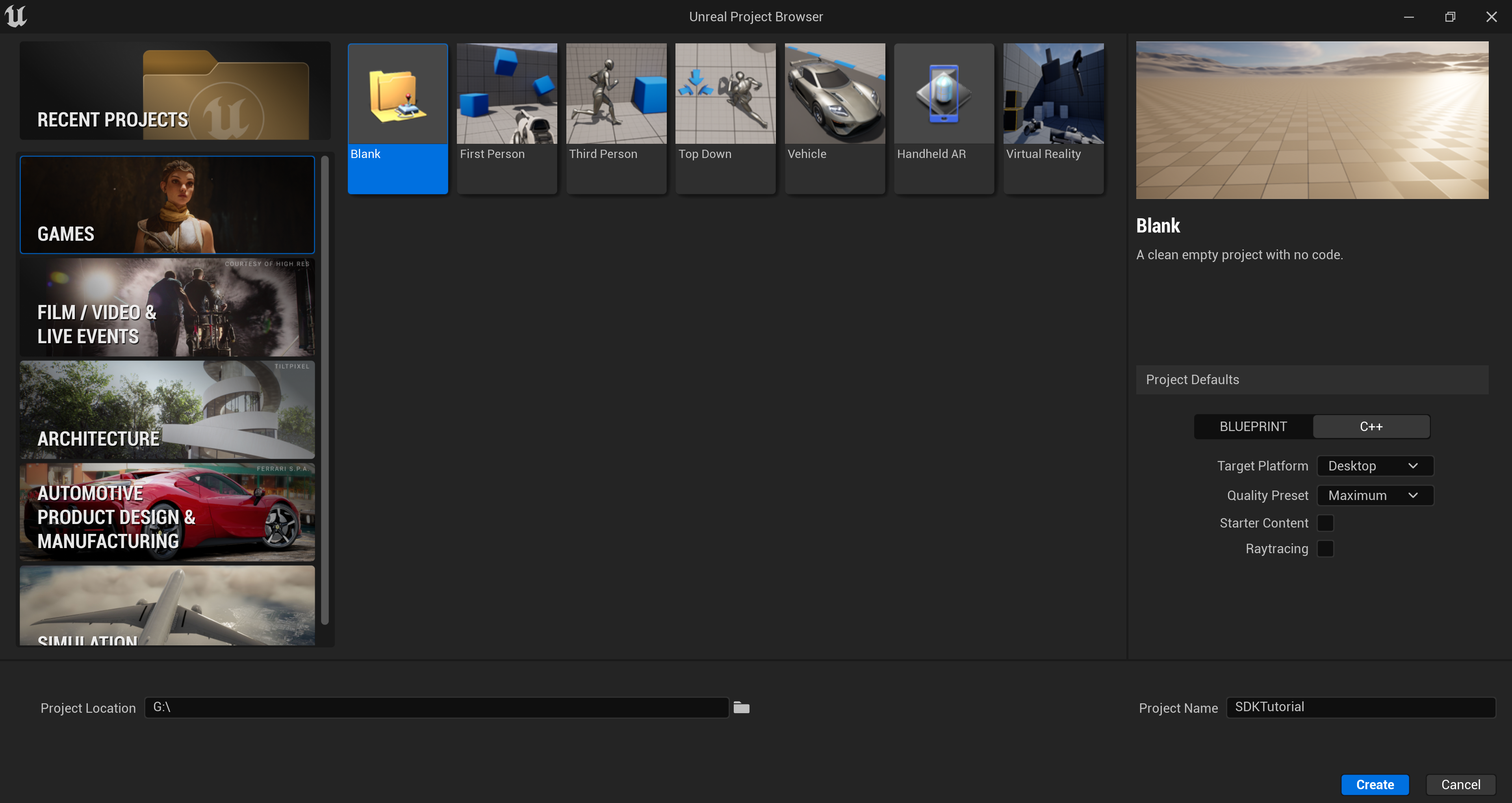
Either open a project you've already created or create a new project by selecting your desired template. This set-up guide will use the 'Blank' template found under `Games` > `Blank`.

<figure><img src="https://3066305863-files.gitbook.io/~/files/v0/b/gitbook-x-prod.appspot.com/o/spaces%2FRuhnZziVCPlGpVrrdJYw%2Fuploads%2FkQGIBRTeP86f2o9Bl8IL%2FScreenshot_1.png?alt=media&amp;token=1ca53194-f4b3-4a90-adc6-f66b6a84d3d3" alt=""><figcaption></figcaption></figure>

Once created, your project folder should be populated a Visual Studio .sln file, and your Unreal Engine .uproject file.

### Install Infinity Void SDK to the Project <a href="#install-inworld-to-the-project" id="install-inworld-to-the-project"></a>

{% hint style="info" %}
If your project does not have a `Plugins` folder, you can paste the entire plugin folder which you've downloaded directly into your project folder.
{% endhint %}

Download the plugins from the following page found [**here**](https://github.com/infinity-void-metaverse/infinityvoid-unreal-sdk/releases)

This download contains he Infinity Void plugin along with some other dependents plugins [gLTFRuntime](https://github.com/rdeioris/glTFRuntime), [Fetch](https://github.com/GDi4K/unreal-fetch), [Ready Player Me](https://docs.readyplayer.me/ready-player-me/integration-guides/unreal-engine).&#x20;

Ensure that your Unreal Engine project is not running by closing the Editor, or by stopping the process from Visual Studio.

Place the downloaded folders inside plugins folder inside your projects `Plugins` directory.

Once the desired plugins are installed, simply double-click your projects .uproject file to open the Unreal Editor. You will be prompted to build the modules. Select 'Yes', and after a short while, the modules will be built and the Editor will open.

{% hint style="info" %}
If building from Visual Studio, right-click your .uproject file and select 'Generate Visual Studio project files'. After a short while, your .sln file will be updated. Simply open the Visual Studio Solution, and build the project.
{% endhint %}

### Creating an Account <a href="#install-inworld-to-the-project" id="install-inworld-to-the-project"></a>

Integrating your Unreal project into Infinity Void's interconnected virtual world requires an active Infinity Void account. If you haven't already created an account, it's essential to [sign up](https://dashboard.infinityvoid.io/).

{% hint style="info" %}
Please ensure that the account used has access to the land parcel or has purchased/subscribed to a land parcel.
{% endhint %}


# Level Setup

Instructions for creating a new map in your game development project and setting up various gameplay elements to enhance the player experience. Follow these steps to create a new map and configure essential elements within it.

### Creating a New Map

To create a new map, follow these steps:

* Click on "File" in the menu.
* Select "New Level."
* You'll be presented with various options; choose the one that suits your project's needs. For a large world, select "Open World," and for a small scene, choose the "Basic Level" option.

<div><figure><img src="https://3066305863-files.gitbook.io/~/files/v0/b/gitbook-x-prod.appspot.com/o/spaces%2FRuhnZziVCPlGpVrrdJYw%2Fuploads%2FIJZ4SafhlOBffPUb5WIV%2Fnew%20level.png?alt=media&amp;token=59771809-bc6d-421f-b40c-e7cd17304f7d" alt=""><figcaption></figcaption></figure> <figure><img src="https://3066305863-files.gitbook.io/~/files/v0/b/gitbook-x-prod.appspot.com/o/spaces%2FRuhnZziVCPlGpVrrdJYw%2Fuploads%2F0vKNXmCOnLpgUMJb5qWN%2Foptions.png?alt=media&amp;token=ecd211d4-5cf9-4f3a-9f84-a418a5774c30" alt=""><figcaption></figcaption></figure></div>

### Set Default Server Map

In your project settings, navigate to the `Maps and Modes` section.

Update the `Server Default Map` setting with the map you've just created. This ensures that your new map is set as the default server map for your project.

### Adding Player Start

Open your newly created map.

To add a player start point, follow these steps:

* Choose the "Place Actors" panel.
* Select "Player Start" from the available options.
* Drag and drop it in your scene. This determines where players will spawn in your map.&#x20;

{% hint style="info" %}
You may set the position of the player start based on your imported environment
{% endhint %}

<div><figure><img src="https://3066305863-files.gitbook.io/~/files/v0/b/gitbook-x-prod.appspot.com/o/spaces%2FRuhnZziVCPlGpVrrdJYw%2Fuploads%2FObYpGv53w6gYVIBGatCX%2Fplace%20actors%20panel.png?alt=media&amp;token=e8702ab1-b036-4f59-877d-5548d64e84e9" alt=""><figcaption></figcaption></figure> <figure><img src="https://3066305863-files.gitbook.io/~/files/v0/b/gitbook-x-prod.appspot.com/o/spaces%2FRuhnZziVCPlGpVrrdJYw%2Fuploads%2FAHs3YzfgieMOkdKWHbHs%2Fplayer%20start.png?alt=media&amp;token=6b0fa41f-3f60-4e46-b64c-9e7d0640fa3c" alt=""><figcaption></figcaption></figure></div>

### Adding Crosshair

Open the Level Blueprint for your map.

Add the following script to ensure that players see a crosshair while playing.

{% hint style="info" %}
Crosshair is mandatory if you wish to utilize the default interaction system present in our SDK.
{% endhint %}

<figure><img src="https://3066305863-files.gitbook.io/~/files/v0/b/gitbook-x-prod.appspot.com/o/spaces%2FRuhnZziVCPlGpVrrdJYw%2Fuploads%2F0HF17hPIMU4oq3IUbDdq%2Fcrosshair%20BP.png?alt=media&amp;token=0c93d208-c2d3-45f9-8c9a-62946a16c728" alt=""><figcaption></figcaption></figure>

Or you can copy and paste this code directly within the event graph of the level blueprint.

```
Begin Object Class=/Script/BlueprintGraph.K2Node_CallFunction Name="K2Node_CallFunction_0" ExportPath=/Script/BlueprintGraph.K2Node_CallFunction'"/Game/IVTest.IVTest:PersistentLevel.IVTest.EventGraph.K2Node_CallFunction_0"'
   bIsPureFunc=True
   FunctionReference=(MemberParent=/Script/Engine.BlueprintGeneratedClass'"/InfinityVoid/Utils/BP_IVUtils.BP_IVUtils_C"',MemberName="GetIVHUD",MemberGuid=06F449A648217D11423CB2A251219447)
   NodePosX=192
   NodePosY=784
   NodeGuid=BCDCEA264EAE32D15DB4AF9E272DA8C5
   CustomProperties Pin (PinId=0BFE81514E6AD77111522E8142A81212,PinName="self",PinFriendlyName=NSLOCTEXT("K2Node", "Target", "Target"),PinType.PinCategory="object",PinType.PinSubCategory="",PinType.PinSubCategoryObject=/Script/Engine.BlueprintGeneratedClass'"/InfinityVoid/Utils/BP_IVUtils.BP_IVUtils_C"',PinType.PinSubCategoryMemberReference=(),PinType.PinValueType=(),PinType.ContainerType=None,PinType.bIsReference=False,PinType.bIsConst=False,PinType.bIsWeakPointer=False,PinType.bIsUObjectWrapper=False,PinType.bSerializeAsSinglePrecisionFloat=False,DefaultObject="/InfinityVoid/Utils/BP_IVUtils.Default__BP_IVUtils_C",PersistentGuid=00000000000000000000000000000000,bHidden=True,bNotConnectable=False,bDefaultValueIsReadOnly=False,bDefaultValueIsIgnored=False,bAdvancedView=False,bOrphanedPin=False,)
   CustomProperties Pin (PinId=456DA25A4651957BD956A789D1B91774,PinName="__WorldContext",PinType.PinCategory="object",PinType.PinSubCategory="",PinType.PinSubCategoryObject=/Script/CoreUObject.Class'"/Script/CoreUObject.Object"',PinType.PinSubCategoryMemberReference=(),PinType.PinValueType=(),PinType.ContainerType=None,PinType.bIsReference=False,PinType.bIsConst=False,PinType.bIsWeakPointer=False,PinType.bIsUObjectWrapper=False,PinType.bSerializeAsSinglePrecisionFloat=False,PersistentGuid=00000000000000000000000000000000,bHidden=True,bNotConnectable=False,bDefaultValueIsReadOnly=False,bDefaultValueIsIgnored=False,bAdvancedView=False,bOrphanedPin=False,)
   CustomProperties Pin (PinId=A4277DED48ECD9B99C29EB9639EA565F,PinName="AsBP ZEZHUD",Direction="EGPD_Output",PinType.PinCategory="object",PinType.PinSubCategory="",PinType.PinSubCategoryObject=/Script/Engine.BlueprintGeneratedClass'"/InfinityVoid/Core/BP_IVHUD.BP_IVHUD_C"',PinType.PinSubCategoryMemberReference=(),PinType.PinValueType=(),PinType.ContainerType=None,PinType.bIsReference=False,PinType.bIsConst=False,PinType.bIsWeakPointer=False,PinType.bIsUObjectWrapper=False,PinType.bSerializeAsSinglePrecisionFloat=False,LinkedTo=(K2Node_CallFunction_1 8543D4BF4572265A96EF4988A970A8D6,K2Node_Knot_0 32E72135417A7EFAE8486CBDA127D040,),PersistentGuid=00000000000000000000000000000000,bHidden=False,bNotConnectable=False,bDefaultValueIsReadOnly=False,bDefaultValueIsIgnored=False,bAdvancedView=False,bOrphanedPin=False,)
End Object
Begin Object Class=/Script/BlueprintGraph.K2Node_CallFunction Name="K2Node_CallFunction_1" ExportPath=/Script/BlueprintGraph.K2Node_CallFunction'"/Game/IVTest.IVTest:PersistentLevel.IVTest.EventGraph.K2Node_CallFunction_1"'
   FunctionReference=(MemberParent=/Script/CoreUObject.Class'"/Script/InfinityVoid.IVHUD"',MemberName="AddCrosshairMainScreen")
   NodePosX=352
   NodePosY=592
   NodeGuid=204F39D44C925911E922148D2E6F6E24
   CustomProperties Pin (PinId=6CD31E024A38CA63F183EE938F0ABB8E,PinName="execute",PinType.PinCategory="exec",PinType.PinSubCategory="",PinType.PinSubCategoryObject=None,PinType.PinSubCategoryMemberReference=(),PinType.PinValueType=(),PinType.ContainerType=None,PinType.bIsReference=False,PinType.bIsConst=False,PinType.bIsWeakPointer=False,PinType.bIsUObjectWrapper=False,PinType.bSerializeAsSinglePrecisionFloat=False,PersistentGuid=00000000000000000000000000000000,bHidden=False,bNotConnectable=False,bDefaultValueIsReadOnly=False,bDefaultValueIsIgnored=False,bAdvancedView=False,bOrphanedPin=False,)
   CustomProperties Pin (PinId=1844328A47DB1B962B1F9580FF984290,PinName="then",Direction="EGPD_Output",PinType.PinCategory="exec",PinType.PinSubCategory="",PinType.PinSubCategoryObject=None,PinType.PinSubCategoryMemberReference=(),PinType.PinValueType=(),PinType.ContainerType=None,PinType.bIsReference=False,PinType.bIsConst=False,PinType.bIsWeakPointer=False,PinType.bIsUObjectWrapper=False,PinType.bSerializeAsSinglePrecisionFloat=False,LinkedTo=(K2Node_CallFunction_2 7EA428204DA711AA1789F5B2B86A72DB,),PersistentGuid=00000000000000000000000000000000,bHidden=False,bNotConnectable=False,bDefaultValueIsReadOnly=False,bDefaultValueIsIgnored=False,bAdvancedView=False,bOrphanedPin=False,)
   CustomProperties Pin (PinId=8543D4BF4572265A96EF4988A970A8D6,PinName="self",PinFriendlyName=NSLOCTEXT("K2Node", "Target", "Target"),PinType.PinCategory="object",PinType.PinSubCategory="",PinType.PinSubCategoryObject=/Script/CoreUObject.Class'"/Script/InfinityVoid.IVHUD"',PinType.PinSubCategoryMemberReference=(),PinType.PinValueType=(),PinType.ContainerType=None,PinType.bIsReference=False,PinType.bIsConst=False,PinType.bIsWeakPointer=False,PinType.bIsUObjectWrapper=False,PinType.bSerializeAsSinglePrecisionFloat=False,LinkedTo=(K2Node_CallFunction_0 A4277DED48ECD9B99C29EB9639EA565F,),PersistentGuid=00000000000000000000000000000000,bHidden=False,bNotConnectable=False,bDefaultValueIsReadOnly=False,bDefaultValueIsIgnored=False,bAdvancedView=False,bOrphanedPin=False,)
End Object
Begin Object Class=/Script/BlueprintGraph.K2Node_CallFunction Name="K2Node_CallFunction_2" ExportPath=/Script/BlueprintGraph.K2Node_CallFunction'"/Game/IVTest.IVTest:PersistentLevel.IVTest.EventGraph.K2Node_CallFunction_2"'
   FunctionReference=(MemberParent=/Script/CoreUObject.Class'"/Script/InfinityVoid.IVHUD"',MemberName="SetCrosshairVisibility")
   NodePosX=736
   NodePosY=592
   NodeGuid=2E0B01B14096A17A5D8ED1B286C8D1A2
   CustomProperties Pin (PinId=7EA428204DA711AA1789F5B2B86A72DB,PinName="execute",PinType.PinCategory="exec",PinType.PinSubCategory="",PinType.PinSubCategoryObject=None,PinType.PinSubCategoryMemberReference=(),PinType.PinValueType=(),PinType.ContainerType=None,PinType.bIsReference=False,PinType.bIsConst=False,PinType.bIsWeakPointer=False,PinType.bIsUObjectWrapper=False,PinType.bSerializeAsSinglePrecisionFloat=False,LinkedTo=(K2Node_CallFunction_1 1844328A47DB1B962B1F9580FF984290,),PersistentGuid=00000000000000000000000000000000,bHidden=False,bNotConnectable=False,bDefaultValueIsReadOnly=False,bDefaultValueIsIgnored=False,bAdvancedView=False,bOrphanedPin=False,)
   CustomProperties Pin (PinId=5CD0FFCF490D9E9BDB6776B5B0B8B47E,PinName="then",Direction="EGPD_Output",PinType.PinCategory="exec",PinType.PinSubCategory="",PinType.PinSubCategoryObject=None,PinType.PinSubCategoryMemberReference=(),PinType.PinValueType=(),PinType.ContainerType=None,PinType.bIsReference=False,PinType.bIsConst=False,PinType.bIsWeakPointer=False,PinType.bIsUObjectWrapper=False,PinType.bSerializeAsSinglePrecisionFloat=False,PersistentGuid=00000000000000000000000000000000,bHidden=False,bNotConnectable=False,bDefaultValueIsReadOnly=False,bDefaultValueIsIgnored=False,bAdvancedView=False,bOrphanedPin=False,)
   CustomProperties Pin (PinId=C7FFD1C04CD4D83AB73E7FB5B709D92A,PinName="self",PinFriendlyName=NSLOCTEXT("K2Node", "Target", "Target"),PinType.PinCategory="object",PinType.PinSubCategory="",PinType.PinSubCategoryObject=/Script/CoreUObject.Class'"/Script/InfinityVoid.IVHUD"',PinType.PinSubCategoryMemberReference=(),PinType.PinValueType=(),PinType.ContainerType=None,PinType.bIsReference=False,PinType.bIsConst=False,PinType.bIsWeakPointer=False,PinType.bIsUObjectWrapper=False,PinType.bSerializeAsSinglePrecisionFloat=False,LinkedTo=(K2Node_Knot_0 8894E7814F931E2249B42F85E5079A15,),PersistentGuid=00000000000000000000000000000000,bHidden=False,bNotConnectable=False,bDefaultValueIsReadOnly=False,bDefaultValueIsIgnored=False,bAdvancedView=False,bOrphanedPin=False,)
   CustomProperties Pin (PinId=6D676E0D4141CD4B21F3BF81A9BC17CD,PinName="bVisible",PinType.PinCategory="bool",PinType.PinSubCategory="",PinType.PinSubCategoryObject=None,PinType.PinSubCategoryMemberReference=(),PinType.PinValueType=(),PinType.ContainerType=None,PinType.bIsReference=False,PinType.bIsConst=False,PinType.bIsWeakPointer=False,PinType.bIsUObjectWrapper=False,PinType.bSerializeAsSinglePrecisionFloat=False,DefaultValue="true",AutogeneratedDefaultValue="false",PersistentGuid=00000000000000000000000000000000,bHidden=False,bNotConnectable=False,bDefaultValueIsReadOnly=False,bDefaultValueIsIgnored=False,bAdvancedView=False,bOrphanedPin=False,)
End Object
Begin Object Class=/Script/BlueprintGraph.K2Node_Knot Name="K2Node_Knot_0" ExportPath=/Script/BlueprintGraph.K2Node_Knot'"/Game/IVTest.IVTest:PersistentLevel.IVTest.EventGraph.K2Node_Knot_0"'
   NodePosX=672
   NodePosY=816
   NodeGuid=F11F060D4264A193A47798AE01574CEA
   CustomProperties Pin (PinId=32E72135417A7EFAE8486CBDA127D040,PinName="InputPin",PinType.PinCategory="object",PinType.PinSubCategory="",PinType.PinSubCategoryObject=/Script/Engine.BlueprintGeneratedClass'"/InfinityVoid/Core/BP_IVHUD.BP_IVHUD_C"',PinType.PinSubCategoryMemberReference=(),PinType.PinValueType=(),PinType.ContainerType=None,PinType.bIsReference=False,PinType.bIsConst=False,PinType.bIsWeakPointer=False,PinType.bIsUObjectWrapper=False,PinType.bSerializeAsSinglePrecisionFloat=False,LinkedTo=(K2Node_CallFunction_0 A4277DED48ECD9B99C29EB9639EA565F,),PersistentGuid=00000000000000000000000000000000,bHidden=False,bNotConnectable=False,bDefaultValueIsReadOnly=False,bDefaultValueIsIgnored=True,bAdvancedView=False,bOrphanedPin=False,)
   CustomProperties Pin (PinId=8894E7814F931E2249B42F85E5079A15,PinName="OutputPin",Direction="EGPD_Output",PinType.PinCategory="object",PinType.PinSubCategory="",PinType.PinSubCategoryObject=/Script/Engine.BlueprintGeneratedClass'"/InfinityVoid/Core/BP_IVHUD.BP_IVHUD_C"',PinType.PinSubCategoryMemberReference=(),PinType.PinValueType=(),PinType.ContainerType=None,PinType.bIsReference=False,PinType.bIsConst=False,PinType.bIsWeakPointer=False,PinType.bIsUObjectWrapper=False,PinType.bSerializeAsSinglePrecisionFloat=False,LinkedTo=(K2Node_CallFunction_2 C7FFD1C04CD4D83AB73E7FB5B709D92A,),PersistentGuid=00000000000000000000000000000000,bHidden=False,bNotConnectable=False,bDefaultValueIsReadOnly=False,bDefaultValueIsIgnored=False,bAdvancedView=False,bOrphanedPin=False,)
End Object
```

### Adding a Close UI Actor

1. From the Content Browser navigate to `Plugins` > `Infinity Void Content` > `Utils`, select the `BP_CloseUI` actor.
2. Drag and drop it in your scene. The purpose of this actor is to communicate with the frontend to close the loading screen.
3. You can adjust the delay by changing the delay value in the actor's details.

{% hint style="info" %}
If you wish to close the loading screen based on some event you may use the same logic present in the BP\_CloseUI actor.
{% endhint %}

<figure><img src="https://3066305863-files.gitbook.io/~/files/v0/b/gitbook-x-prod.appspot.com/o/spaces%2FRuhnZziVCPlGpVrrdJYw%2Fuploads%2FHmYxBJOVEQTdIGWUkjn0%2Fdelay.png?alt=media&amp;token=a732ad50-ddbe-4451-8aea-b1c72590aec3" alt=""><figcaption></figcaption></figure>

### Adding an Exit Volume (Optional)

For a more immersive experience, you can add a volume actor called `BP_Exit` by navigating to `Plugins` > `Infinity Void Content` > `Utils`. Placing this actor and configuring the volume inside it will allow players to return to the city if they enter this designated area.

### Linking to the Lobby Map

Navigate to the Lobby map, located in `Plugins` > `Infinity Void Content` > `Map`.

In the Outliner select `BP_InfinityVoidSDK` and go to `Details`.

In the `Gameplay Level` field, choose the map you've just created. This links your new map to the lobby map.

{% hint style="info" %}
Lobby map is the application's default map. This map is not visible to players. It only servers the purpose of opening the main level which you create.
{% endhint %}

<figure><img src="https://3066305863-files.gitbook.io/~/files/v0/b/gitbook-x-prod.appspot.com/o/spaces%2FRuhnZziVCPlGpVrrdJYw%2Fuploads%2F2FdgbAApyPzvneOtEqzs%2Flevel%20select.png?alt=media&amp;token=234fb941-ce5f-4d22-aa1f-84e036919b8c" alt=""><figcaption></figcaption></figure>


# Project Settings

Infinity Void Unreal Engine SDK - Getting Started

The settings mentioned on this page are crucial to ensure the proper functionality of your project. Please follow the instructions below to modify the necessary settings.

### Maps & Modes

In the "Project Settings" section, locate the `Maps and Modes` category. Here, you will make several important changes.

**Default Game Mode**

Set "Default Game Mode" to `BP_IVGM`

**Game Default Map**

Set "Game Default Map" to `Lobby`

**Server Default Map**

Choose the map you've created for your game experience and set it as the Server Default Map. Server Default Map field will be visible after clicking the Advanced options.

<figure><img src="https://3066305863-files.gitbook.io/~/files/v0/b/gitbook-x-prod.appspot.com/o/spaces%2FRuhnZziVCPlGpVrrdJYw%2Fuploads%2FlC6ijKHA7jdHpOYd7A6B%2FGM.png?alt=media&amp;token=9ffd5946-6b38-4d28-be45-244aef08da80" alt=""><figcaption><p>Map Settings</p></figcaption></figure>

#### Game Instance Settings

Scroll down to the "Game Instance" section. Set `Game Instance Class` to **`BP_IVGI`**

<figure><img src="https://3066305863-files.gitbook.io/~/files/v0/b/gitbook-x-prod.appspot.com/o/spaces%2FRuhnZziVCPlGpVrrdJYw%2Fuploads%2F24dKHUA2S1BWG8xTH1li%2Fgi.png?alt=media&amp;token=58a81d47-51a1-4ef9-903f-8c609a304d62" alt=""><figcaption><p>Game Instance Class</p></figcaption></figure>

### Input Settings

Still within the "Project Settings" section, locate the "Touch Interface" category.

**Always Show Touch Interface**

Set `Always Show Touch Interface` to **`True`**

**Default Touch Interface**

Set `Default Touch Interface` to **`none`** by clicking on the `clear` button shown within the dropdown of the default touch interface options.

<figure><img src="https://3066305863-files.gitbook.io/~/files/v0/b/gitbook-x-prod.appspot.com/o/spaces%2FRuhnZziVCPlGpVrrdJYw%2Fuploads%2FsdCCulAamzELGYDLCKmu%2Finput.png?alt=media&amp;token=d7d892d9-3f69-43b8-a9b3-4a397c124e0a" alt=""><figcaption><p>Input Settings</p></figcaption></figure>


# Interactable Elements

**Infinity Void SDK** offers built-in functionality for enabling interaction with elements within your scene. To make actors interactable, there are two methods available:

### **BP\_InteractableBaseChild**

This blueprint simplifies the process of creating interactive elements in your scene. Here are the steps to make an actor interactable:

a. Duplicate the BP\_InteractableBaseChild blueprint.

<figure><img src="https://3066305863-files.gitbook.io/~/files/v0/b/gitbook-x-prod.appspot.com/o/spaces%2FRuhnZziVCPlGpVrrdJYw%2Fuploads%2FIyneuPccDTnQmlF0sDya%2Fduplicate.png?alt=media&amp;token=e11cb2e6-257c-41d7-a65b-97cebbfd1ceb" alt=""><figcaption></figcaption></figure>

b. Open the blueprint editor.

c. Select the visual mesh you want to make interactable.

<figure><img src="https://3066305863-files.gitbook.io/~/files/v0/b/gitbook-x-prod.appspot.com/o/spaces%2FRuhnZziVCPlGpVrrdJYw%2Fuploads%2FPilawB1uqMqVL7wfKRvG%2Fvisual%20mesh.png?alt=media&amp;token=8c09f54e-9376-4041-af78-a4a6322b41df" alt=""><figcaption></figcaption></figure>

d. Drag and drop the actor into your scene.

Inside the blueprint, you have the flexibility to:

* Add custom logic for interactions.

<figure><img src="https://3066305863-files.gitbook.io/~/files/v0/b/gitbook-x-prod.appspot.com/o/spaces%2FRuhnZziVCPlGpVrrdJYw%2Fuploads%2FQ0s5HgAkibGau4ArtlDL%2Flogic.png?alt=media&amp;token=741b7e16-1185-41b4-9fcd-772183376b49" alt=""><figcaption></figcaption></figure>

* Modify the displayed text when the user aims at the object.
* Toggle interactability using a boolean, which can be useful for scenarios where you want to restrict user interaction with the actor based on certain events or conditions.

<figure><img src="https://3066305863-files.gitbook.io/~/files/v0/b/gitbook-x-prod.appspot.com/o/spaces%2FRuhnZziVCPlGpVrrdJYw%2Fuploads%2FaKSWR5qQZLKB3weGgM2O%2FOptions%20IV.png?alt=media&amp;token=792c0018-2aef-4ad4-afb4-4f487f58c975" alt=""><figcaption></figcaption></figure>

### **IVIInteractable Interface**

If you want to make a class interactable other than actors, such as pawns, you can do so by following these steps:

To begin, navigate to the custom class you have created and open it.

If you wish to make this class interactable, rather than actor classes, follow these steps:

a. Open Class which you would like to make interactable.

b. Under Class Settings scroll down the Interface section, select `IVIInteractable`.

<figure><img src="https://3066305863-files.gitbook.io/~/files/v0/b/gitbook-x-prod.appspot.com/o/spaces%2FRuhnZziVCPlGpVrrdJYw%2Fuploads%2FMicFhAvVlSVpzvaB6YXo%2Finterface.png?alt=media&amp;token=380d7ee8-1b37-45eb-a3a1-6ace6fb247dd" alt=""><figcaption></figcaption></figure>

c. Implement your unique interaction logic in the event graph.

<figure><img src="https://3066305863-files.gitbook.io/~/files/v0/b/gitbook-x-prod.appspot.com/o/spaces%2FRuhnZziVCPlGpVrrdJYw%2Fuploads%2FM4Y0D7Jr8JHYLrWtXhTV%2Fcustom%20logic.png?alt=media&amp;token=6834b772-5035-4af3-a1b7-e5f314790fcf" alt=""><figcaption></figcaption></figure>


# SDK Structure

Infinity Void Unreal Engine SDK - Getting Started

Our SDK package consists of three main folders under the content folder

* Core
* Assets
* UI

{% content-ref url="/pages/7oYnd3NuBdHhUfA6ab9n" %}
[Core](/guides/for-content-creators/unreal-engine-sdk/sdk-structure/03.1-core)
{% endcontent-ref %}


# Core

Infinity Void Unreal Engine SDK - Getting Started

The Core folder contains crucial classes and blueprints that form the backbone of the SDK’s functionality. The core folder contains the following classes

{% content-ref url="/pages/NlDbrK9VnGW3YTiSDvbR" %}
[BP\_IVCharacter](/guides/for-content-creators/unreal-engine-sdk/sdk-structure/03.1-core/0.3.1.1-bp_zezcharacter)
{% endcontent-ref %}

{% content-ref url="/pages/HmKmYuQ8ZJlpYOLlIvUP" %}
[BP\_IVGI](/guides/for-content-creators/unreal-engine-sdk/sdk-structure/03.1-core/0.3.1.2-bp_zezgi)
{% endcontent-ref %}

{% content-ref url="/pages/cAMmjLB76rQqYPYs7uzq" %}
[BP\_IVGM](/guides/for-content-creators/unreal-engine-sdk/sdk-structure/03.1-core/0.3.1.3-bp_zezgm)
{% endcontent-ref %}

##


# BP\_IVCharacter

Character Class

This class, BP\_IVCharacter, serves as the primary character class for your game within the Infinity Void SDK. It encompasses all the essential logic and functionality related to the character's behavior and interactions. The class has been optimized specifically for multiplayer functionality, ensuring smooth and efficient gameplay experiences in a multiplayer environment.

It's important to note that the BP\_IVCharacter class includes the default Ready Player Me character. Ready Player Me allows users to create and customize their own avatars within the Infinity Void Metaverse. The character appearance and details are automatically updated whenever users log in via the platform.

The BP\_IVCharacter class also incorporates a CharacterMovementComponent, which has been implemented from scratch in C++. This custom CharacterMovementComponent is designed to maximize efficiency and performance in a multiplayer environment. It ensures smooth and responsive character movement, providing an immersive experience for players.

As a best practice, it is recommended to avoid making modifications to the BP\_IVCharacter class unless necessary for adding new features or specific customization requirements. Modifying the class unnecessarily may interfere with the optimized multiplayer functionality and character movement implemented within the SDK.

By leveraging the BP\_IVCharacter class as the foundation for your character's logic and behavior, you can benefit from the optimized multiplayer functionality, seamless integration with Ready Player Me, and efficient character movement in the Infinity Void Metaverse. It is mandatory to use this class for your player.

For more detailed information on utilizing the BP\_IVCharacter class or any other components within the Infinity Void SDK, please refer to the provided documentation and reach out to our support team for further assistance.


# BP\_IVGI

Game Instance Class

The BP\_IVGI class, also known as the Game Instance class, plays a crucial role in the Infinity Void SDK. It serves as a container for storing information that needs to remain constant throughout the game, regardless of the current level or gameplay state. This class allows for convenient access to important variables that are relevant to the overall game experience.

Within the BP\_IVGI class, you can find variables such as `{User Detail User ID}`, `{User Detail User Name}`, `{User Detail Avatar Model URL}`, `{User Detail Wallet Address}` . These variables hold essential data that can be accessed and utilized throughout the game.&#x20;

1. User Detail User ID:
   * This variable stores the unique identifier (ID) associated with the user. It serves as a unique reference for the user's account within the Infinity Void Metaverse.
   * The User ID is typically used for various backend operations, authentication, and identification purposes. It allows you to uniquely identify and manage user-specific data and interactions.
2. User Detail User Name:
   * This variable holds the username or display name of the user. It represents the name by which the user is identified within the Infinity Void Metaverse.
   * The User Name can be utilized for displaying personalized information, leaderboards, chat systems, or any other in-game features that require identifying the user by name.
3. User Detail Avatar Model URL:
   * This variable stores the URL or reference to the 3D model file of Ready Player Me avatars that represents the user's avatar within the Infinity Void Metaverse.&#x20;
   * By accessing this URL, you can retrieve the user's avatar model and render it within the game. This allows for the customization and visual representation of the user's virtual identity.
4. User Detail Wallet Address:
   * This variable holds the wallet address associated with the user's virtual wallet within the Infinity Void Metaverse.
   * The Wallet Address can be used for in-game transactions, virtual currency management, or any other financial interactions within the game.

By accessing these variables through the game instance, you can access and utilize this important information within various aspects of your game.

{% hint style="info" %}
Example: You can use the UserId for backend operations or leaderboards, or interact with the virtual wallet address for in-game transactions.
{% endhint %}

&#x20;If you need to access the user detail variables mentioned above in any other blueprints, you can follow these steps:

<figure><img src="https://3066305863-files.gitbook.io/~/files/v0/b/gitbook-x-prod.appspot.com/o/spaces%2FRuhnZziVCPlGpVrrdJYw%2Fuploads%2Fti8xVbDqkDbo2RrTh1cn%2Fcast.png?alt=media&amp;token=f58ef15d-29a7-4561-9b4d-4880ae2f717a" alt=""><figcaption><p>Getting Variables From Game Instance</p></figcaption></figure>

1. Cast Function:
   * Begin by adding a Cast node in the blueprint where you want to access the user detail variables.
   * Connect the object you want to cast from (get game instance) to the "Object" input of the Cast node.
2. Cast to BP\_ZEZGI:
   * From the "Class" dropdown in the Cast node, select BP\_ZEZGI to cast to the BP\_ZEZGI class.
   * This allows you to access the user detail variables stored in the BP\_ZEZGI instance.
3. Get User Detail Variable:

   * After casting to BP\_ZEZGI, you can use a Get node to retrieve the specific user detail variable you need.
   * Right-click on the BP\_ZEZGI reference output of the Cast node, and from the context menu, select "Split Struct Pin"&#x20;

   <div align="left" data-full-width="true"><figure><img src="https://3066305863-files.gitbook.io/~/files/v0/b/gitbook-x-prod.appspot.com/o/spaces%2FRuhnZziVCPlGpVrrdJYw%2Fuploads%2FiPwZW2qC0KzJqjf2FAgn%2FSplit.png?alt=media&amp;token=1c38f064-3ea7-4a06-81ad-be97573db932" alt="" width="472"><figcaption><p>Split Struct Pin</p></figcaption></figure></div>

By splitting the struct pin, you can access individual components of the user detail variable, such as User ID, User Name, Avatar Model URL, or Wallet Address, separately. This allows you to utilize the specific information as required in your blueprint logic.

If you desire to create your own database, you can leverage the variables stored in the game instance. By retrieving these variables, you can send the data to your custom database or use them as references for data retrieval and storage operations.

The BP\_ZEZGI class provides a centralized and efficient way to manage and access important game-related information that persists throughout the entire gameplay experience. Leveraging this class and its variables can enhance the customization and functionality of your game within the Infinity Void Metaverse.

{% hint style="info" %}
Note: Existing variables inside this class shouldn't be modified. However, new variables can be added to this class according to your requirements.
{% endhint %}


# BP\_IVGM

Game Mode Class

BP\_ZEZGM is a significant blueprint class within the Infinity Void SDK. It serves as the Game Mode class responsible for managing the game rules, player spawning, and other global aspects of your game within the Infinity Void Metaverse. This documentation provides a detailed overview of the BP\_ZEZGM class, its functionality, and how to effectively utilize it.

Overview: The BP\_ZEZGM blueprint class plays a crucial role in defining the behavior and rules of your game within the Infinity Void Metaverse. It manages important aspects such as player spawning, game initialization, and game-specific logic. Understanding and utilizing the features of BP\_ZEZGM will enable you to create immersive and engaging gameplay experiences.

## Key Functionality:

1. Game Initialization:
   * BP\_IVGM handles the initialization of your game when it starts or restarts.
   * It sets up initial game state, configurations, and prepares the game environment for players to interact with.
   * You can customize the game initialization process within the blueprint graph to suit your game's specific requirements.
2. Player Spawning:
   * BP\_IVGM manages the spawning of players when they join the game or respawn after events such as death or level transitions.
   * It controls the placement of players within the game world and ensures proper synchronization in multiplayer scenarios.
   * You can customize the player spawning logic based on game rules, player preferences, or specific spawning locations.
3. Game Rules and Logic:
   * BP\_IVGM defines the game rules and logic that govern the gameplay experience.
   * It handles win/loss conditions, scoring mechanisms, game progression, and other game-specific rules.
   * You can implement and customize the game rules and logic within the blueprint graph to create unique gameplay mechanics and challenges.
4. Multiplayer and Networking:
   * BP\_IVGM includes networking functionality to support multiplayer gameplay within the Infinity Void Metaverse.
   * It manages network replication, synchronization, and communication between connected players.
   * You can leverage the multiplayer features of BP\_ZEZGM to create cooperative or competitive multiplayer experiences within your game.

## Class Bindings

BP\_ZEZGM class allows you to bind several other essential classes to your game, enhancing its functionality and providing seamless integration between different components. These classes include:

1. Game Session Class:
   * The Game Session class manages the overall session and session-related functionality, such as session creation, joining, and handling session-specific events.
   * By binding the Game Session class within the BP\_ZEZGM, you establish the connection between the game mode and the session management system, enabling seamless multiplayer experiences.
2. Game State Class:
   * The Game State class manages the global state and variables that define the current state of the game, such as scores, timers, or other game-specific data.
   * By binding the Game State class within the BP\_ZEZGM, you ensure that the game mode can access and update the game state as necessary.
3. Player Controller Class:
   * The Player Controller class handles player input and manages player-related functionality, including camera control, input mapping, and player-specific actions.
   * By binding the Player Controller class within the BP\_ZEZGM, you establish the connection between the game mode and player controllers, allowing for coordinated gameplay interactions.
4. Player State Class:
   * The Player State class manages the state and variables specific to individual players, such as player scores, inventory, or other player-specific data.
   * By binding the Player State class within the BP\_ZEZGM, you ensure that the game mode can access and update player-specific information during gameplay.
5. HUD Class:
   * The HUD class handles the display of in-game elements, including health bars, minimaps, scoreboards, or any other visual information relevant to the gameplay.
   * By binding the HUD class within the BP\_ZEZGM, you establish the connection between the game mode and the HUD, enabling the HUD to provide real-time information to players.
6. Default Pawn Class:
   * The Default Pawn class represents the default player-controlled pawn within the game.
   * By binding the Default Pawn class within the BP\_ZEZGM, you define the default pawn used by players when they enter the game, providing a starting point for their gameplay experience.
7. Spectator Class and Relay Spectator Player Controller Class:
   * The Spectator Class and Relay Spectator Player Controller Class handle spectator mode functionality within the game.
   * By binding these classes within the BP\_ZEZGM, you enable players to enter spectator mode and observe the gameplay without directly participating as active players.
8. Server Stat Replicator Class:
   * The Server Stat Replicator Class manages the replication of server statistics and data to clients in a multiplayer environment.
   * By binding the Server Stat Replicator Class within the BP\_ZEZGM, you enable efficient synchronization of server statistics between the server and connected clients.

By binding these classes within the BP\_ZEZGM, you establish the necessary connections and interactions between various components of your game, ensuring a cohesive and immersive gameplay experience within the Infinity Void Metaverse.

{% hint style="info" %}
Classes mentioned above, such as the Game Session Class, Game State Class, Player Controller Class, Player State Class, HUD Class, Default Pawn Class, Spectator Class, Relay Spectator Player Controller Class, and Server Stat Replicator Class, are already pre-bound and integrated within the BP\_ZEZGM class for ease of use.
{% endhint %}

These default bindings enable seamless functionality and interaction between these classes within the Infinity Void SDK. The pre-bound classes work together harmoniously to provide essential features and ensure a smooth gameplay experience within the Infinity Void Metaverse.

However, depending on the specific requirements and customization of your game, you may have the flexibility to modify or change the bindings of certain classes. This allows you to tailor the gameplay experience and integrate additional or custom functionality as needed.

When modifying or changing class bindings within the BP\_ZEZGM, exercise caution and ensure that any alterations align with your game's requirements and do not introduce conflicts or compatibility issues with the existing functionality of the Infinity Void SDK.

For further guidance on modifying class bindings within the BP\_ZEZGM or any other related components within the Infinity Void SDK, please consult the provided documentation or reach out to our support team for assistance.

{% hint style="info" %}
Note: The ability to modify specific class bindings within the BP\_ZEZGM may vary based on the specific implementation and customization of the Infinity Void SDK within your project.
{% endhint %}


# Actors

Infinity Void Unreal Engine SDK - Getting Started

The actor folder contains crucial classes and blueprints in the form of actors.

{% content-ref url="/pages/NlDbrK9VnGW3YTiSDvbR" %}
[BP\_IVCharacter](/guides/for-content-creators/unreal-engine-sdk/sdk-structure/03.1-core/0.3.1.1-bp_zezcharacter)
{% endcontent-ref %}

{% content-ref url="/pages/HmKmYuQ8ZJlpYOLlIvUP" %}
[BP\_IVGI](/guides/for-content-creators/unreal-engine-sdk/sdk-structure/03.1-core/0.3.1.2-bp_zezgi)
{% endcontent-ref %}

{% content-ref url="/pages/cAMmjLB76rQqYPYs7uzq" %}
[BP\_IVGM](/guides/for-content-creators/unreal-engine-sdk/sdk-structure/03.1-core/0.3.1.3-bp_zezgm)
{% endcontent-ref %}

##


# BP\_InteractableBase

Infinity Void Unreal Engine SDK - Getting Started

Documentation updating soon!


# BP\_IVSprintBlockVolume

Infinity Void Unreal Engine SDK - Getting Started

Documentation updating soon!


# BP\_IVJumpVolume

Infinity Void Unreal Engine SDK - Getting Started

Documentation updating soon!


# BP\_InteractableBase\_Child

Documentation updating soon!


# BP\_IVGLTFRuntimeActorAsync

Documentation updating soon!


# Widgets

Infinity Void Unreal Engine SDK - Getting Started

The actor folder contains crucial classes and blueprints in the form of actors.

{% content-ref url="/pages/NlDbrK9VnGW3YTiSDvbR" %}
[BP\_IVCharacter](/guides/for-content-creators/unreal-engine-sdk/sdk-structure/03.1-core/0.3.1.1-bp_zezcharacter)
{% endcontent-ref %}

{% content-ref url="/pages/HmKmYuQ8ZJlpYOLlIvUP" %}
[BP\_IVGI](/guides/for-content-creators/unreal-engine-sdk/sdk-structure/03.1-core/0.3.1.2-bp_zezgi)
{% endcontent-ref %}

{% content-ref url="/pages/cAMmjLB76rQqYPYs7uzq" %}
[BP\_IVGM](/guides/for-content-creators/unreal-engine-sdk/sdk-structure/03.1-core/0.3.1.3-bp_zezgm)
{% endcontent-ref %}

##


# UI\_Main

Infinity Void Unreal Engine SDK - Getting Started

Documentation updating soon!


# UI\_UserName

Documentation updating soon!


# Utils

Infinity Void Unreal Engine SDK - Getting Started

The actor folder contains crucial classes and blueprints in the form of actors.

{% content-ref url="/pages/NlDbrK9VnGW3YTiSDvbR" %}
[BP\_IVCharacter](/guides/for-content-creators/unreal-engine-sdk/sdk-structure/03.1-core/0.3.1.1-bp_zezcharacter)
{% endcontent-ref %}

{% content-ref url="/pages/HmKmYuQ8ZJlpYOLlIvUP" %}
[BP\_IVGI](/guides/for-content-creators/unreal-engine-sdk/sdk-structure/03.1-core/0.3.1.2-bp_zezgi)
{% endcontent-ref %}

{% content-ref url="/pages/cAMmjLB76rQqYPYs7uzq" %}
[BP\_IVGM](/guides/for-content-creators/unreal-engine-sdk/sdk-structure/03.1-core/0.3.1.3-bp_zezgm)
{% endcontent-ref %}

##


# BP\_CloseUI

Infinity Void Unreal Engine SDK - Getting Started

Documentation updating soon!


# BP\_Exit

Documentation updating soon!


# BP\_InfinityVoidSDK

Documentation updating soon!


# BP\_IVMacroUtils

Documentation updating soon!


# BP\_IVUtils

Documentation updating soon!


# Submitting Your Project

Once you've successfully completed your project, the next pivotal step is uploading it to the Infinity Void dashboard for deployment. Here's how to proceed:

**1.Zipping Your Project Files**

Before you proceed, please make sure that your project files are correctly compressed into a `zip` archive. Ensure that you have removed the `intermediate`, `binaries`, `saved`, and `DerivedDataCache` folders before creating the zip. This will ensure that your zip file contains only the essential data, minimizing its size.

**2. Uploading the File**

To upload your project:

* Visit the Infinity Void dashboard.
* Navigate to the appropriate tab.
* Click on "Upload Unreal Engine Package."
* Choose the zipped file containing your project files.

**3. Pending Review and Approval**

Upon successful upload, the status will display as pending. Our diligent content moderation team will review your submission. If all components align as required, your project will be approved for deployment.

{% hint style="success" %}
Uploading your project files ensures that a dedicated server is automatically built for your experience.
{% endhint %}

{% hint style="warning" %}
The larger the project, the more time it will take to load for users.
{% endhint %}


# Void Craft

No code tool for designing impeccable scenes

### Download[​](https://docs.inworld.ai/docs/tutorial-integrations/unreal-engine#download) <a href="#download" id="download"></a>

Download the latest version of Void Craft on our [**Website**](https://www.voidcraft.infinityvoid.io/).

### Prerequisites <a href="#prerequisites" id="prerequisites"></a>

| Requirement | Version                     |
| ----------- | --------------------------- |
| Platform    | `Windows 10 or higher`      |
| Memory      | `16 GB RAM`                 |
| VRAM        | `Nvidia GTX 1080 or better` |
| Direct X    | `11 or higher`              |

{% hint style="info" %}
You could build using Windows and distribute over all platforms (Mac, Windows, Mobiles)
{% endhint %}


# Getting Started

Before embarking on the journey of deploying your scene on Infinity Void, it's imperative to ensure that you've met the necessary prerequisites.

### Creating Account  <a href="#install-inworld-to-the-project" id="install-inworld-to-the-project"></a>

If you haven't already created an account, it's essential to [**Sign Up**](https://dashboard.infinityvoid.io/). Your Infinity Void account serves as the portal to our platform's diverse array of features and functionalities.

### Installing Void Craft Launcher[​](https://docs.inworld.ai/docs/tutorial-integrations/unreal-engine/getting-started/#installing-visual-studio) <a href="#installing-visual-studio" id="installing-visual-studio"></a>

{% hint style="info" %}
You need to download the launcher first. The launcher ensures that Void Craft remains up to date on your device.
{% endhint %}

Download the [**Void Craft Launcher**](https://www.voidcraft.infinityvoid.io/).


# Basics

The Basics page is designed to provide an introduction to the fundamental concepts and functions.

The Basics page is a great place to start if you're new to the Metaverse Creator Tool. This tool is a user-friendly editor that allows you to create highly-detailed scenes with drag-and-drop ease, without requiring any prior knowledge of 3D design. The tool comes pre-loaded with a wide range of assets, materials, and programmed modules, all seamlessly integrated with the drag-and-drop functionality.

## User Interface

<figure><img src="https://3066305863-files.gitbook.io/~/files/v0/b/gitbook-x-prod.appspot.com/o/spaces%2FRuhnZziVCPlGpVrrdJYw%2Fuploads%2FkyOdBAyPa8kJSm706P0F%2FVoidCraft-UI.png?alt=media&amp;token=d695f3f4-36bd-470e-a998-19ce3ff968f5" alt=""><figcaption></figcaption></figure>

The entire UI of the creator tool can be broadly classified under 5 heads

### **Toolbar**

<figure><img src="https://3066305863-files.gitbook.io/~/files/v0/b/gitbook-x-prod.appspot.com/o/spaces%2FRuhnZziVCPlGpVrrdJYw%2Fuploads%2FjbYKz2Nw2ijvVcWJ5Aw7%2FToolbar.png?alt=media&amp;token=37157ea5-88ac-4a3e-981a-1e35c91bdb98" alt=""><figcaption></figcaption></figure>

The toolbar is a collection of essential tools required during scene creation. Hovering over each icon on the toolbar reveals its purpose. Here is a list of the functions of each tool present on the toolbar:

`New Scene`: This tool creates a new scene from scratch, similar to the "New File" option found in other editing software.

`Load Saved Scene`: This tool lets you open previously saved scenes.

`Save Scene`: This tool enables you to save your current scene, so you can come back to it later.

`Save Scene As`: This tool allows you to make a copy or variant of the current scene, which can be useful for creating backups or experimenting with different versions.

`Display UI`: This tool lets you hide or unhide the editor UI, giving you a full-screen view of your scene.

`Undo/Redo`: These tools allow you to undo or redo your actions, in case you make a mistake or want to go back to a previous step.

`Lights`: This tool allows you to add lights to your scene, which can dramatically change the look and feel of your environment.

`Select, Translate, Rotate, Scale, Pivot World or Local, Snap`: These are all tools for manipulating objects in your scene. You can select, move, rotate, scale, and snap objects to specific positions and angles.

`Character`: This tool allows you to add character to your scene. You need to drag and drop the option in order to get the character to the scene.

`Play/Stop`: These buttons allow you to play and stop your character, so you can preview your environment with your character.

`Zoom Selection`: This tool allows you to zoom in on the selected object.&#x20;

`Zoom Region`: This tool allows you to zoom in on a specific region of your scene.&#x20;

`Isolate`: This option allows you to hide all objects except for the selected object. This is useful when you want to focus on a particular object.&#x20;

`Unhide All Actors`: This tool allows you to unhide all the hidden objects in the scene. Align Camera: This option helps you align the camera to the selected object or a group of objects.&#x20;

`FOV`: FOV stands for "field of view." This tool allows you to adjust the field of view of the camera, which determines how much of the scene is visible.

### Outliner

<figure><img src="https://3066305863-files.gitbook.io/~/files/v0/b/gitbook-x-prod.appspot.com/o/spaces%2FRuhnZziVCPlGpVrrdJYw%2Fuploads%2FrfCb53Ip1oFg8cdVjZyQ%2FOutliner.png?alt=media&amp;token=ba21fda4-df12-4778-9338-d3f6d39a785b" alt=""><figcaption></figcaption></figure>

This lists all of the assets that have been added to the scene, making it easy to organize and manipulate them.

### Details Panel

This allows you to edit the properties of selected assets, such as their position, rotation, and scale, as well as other properties.

<figure><img src="https://3066305863-files.gitbook.io/~/files/v0/b/gitbook-x-prod.appspot.com/o/spaces%2FRuhnZziVCPlGpVrrdJYw%2Fuploads%2FCda0lrOJVqpjwSY6Q8e1%2Fdetails%20panel.png?alt=media&amp;token=5bae6d7f-832d-4870-8096-8746cd68ff91" alt=""><figcaption></figcaption></figure>

### Content Browser

This lets you search for and select additional assets to add to your scene.

<figure><img src="https://3066305863-files.gitbook.io/~/files/v0/b/gitbook-x-prod.appspot.com/o/spaces%2FRuhnZziVCPlGpVrrdJYw%2Fuploads%2F7R4nc1k1PXBP0sET24Nv%2Fcontent%20browser.png?alt=media&amp;token=217fcc83-cf9b-4145-83e1-507a6df550e0" alt=""><figcaption></figcaption></figure>

### Material Editor

This provides a comprehensive toolset for editing materials, allowing you to customize the appearance of your assets with ease.

<figure><img src="https://3066305863-files.gitbook.io/~/files/v0/b/gitbook-x-prod.appspot.com/o/spaces%2FRuhnZziVCPlGpVrrdJYw%2Fuploads%2FDc8PrlBu8Nw6quSDKiAC%2Fmaterial%20editor.png?alt=media&amp;token=9ac5fccc-e452-42b5-9954-4b07ce46b961" alt=""><figcaption></figcaption></figure>

## Controls

<table><thead><tr><th width="331">Input</th><th>Result</th></tr></thead><tbody><tr><td>RMB + Mouse X</td><td>Turn Camera Left-Right </td></tr><tr><td>RMB + Mouse Y</td><td>Turn Camera Up-Down</td></tr><tr><td>Middle Mouse Button + Mouse X</td><td>Move Left-Right</td></tr><tr><td>Middle Mouse Button + Mouse Y</td><td>Move Up-Down</td></tr><tr><td>Alt + Left Mouse Button</td><td>Move Forward-Backward</td></tr><tr><td>Mouse Wheel</td><td>Move Forward-Backward </td></tr><tr><td>Shift + Right Mouse Button</td><td>Orbit</td></tr><tr><td>Z</td><td>Zoom Selected Actors</td></tr><tr><td>Alt +Q</td><td>Isolate</td></tr><tr><td>Shift +Z</td><td>Undo Camera Action</td></tr><tr><td>Q</td><td>Set Selection Mode</td></tr><tr><td>W</td><td>Set Translation Mode</td></tr><tr><td>E</td><td>Set Rotation Mode</td></tr><tr><td>R</td><td>Set Scaling Mode</td></tr><tr><td>T</td><td>Toggle Snap</td></tr><tr><td>Alt +Delete</td><td>Delete Actors</td></tr><tr><td>Ctrl + Z</td><td>Undo Action</td></tr><tr><td>Ctrl +B</td><td>Redo Action</td></tr><tr><td>Ctrl +S</td><td>Save Current Scene</td></tr><tr><td>Ctrl +O</td><td>Open Scene</td></tr></tbody></table>

{% hint style="warning" %}
Did you find any bugs? Mail us at <support@infinityvoid.io>
{% endhint %}


# Adding Building

This page will tell how to add building to your scene

### Adding Building Model

1. Navigate to `3D Models` > `Structure` > `Buildings`
2. Browse through the available building designs.
3. Choose a design that suits your project.
4. You have three options for building types: (i) Ground Floor Structures (ii) Upper Floor Structures (iii) Complete Buildings

{% hint style="info" %}
If you prefer a modular approach, select both Ground Floor Structures and Upper Floor Structures separately for kitbashing. Alternatively, you can choose a Complete Building for your project.
{% endhint %}

### Adding Doors

1. Go to `3D Models` > `Structure` > `Doors`
2. By default, buildings do not include doors. To add doors to a specific building, consider the following: If you've added, for instance, "Building\_05" to your scene, there should be a corresponding door called "Door\_05" meant for that building.

{% hint style="info" %}
You have the creative freedom to explore and select different door designs based on your preferences.
{% endhint %}

### Adding Elevator

<figure><img src="https://3066305863-files.gitbook.io/~/files/v0/b/gitbook-x-prod.appspot.com/o/spaces%2FRuhnZziVCPlGpVrrdJYw%2Fuploads%2F7xqBdt4x570Pj9gCu5Fx%2Felevator.png?alt=media&amp;token=accae449-5408-4d5c-957d-ad2bc19382ab" alt=""><figcaption></figcaption></figure>

\
To add an elevator to a multi-storied building, follow these straightforward steps:

1. Visit `Smart Objects` > `3D` > `Elevator`.
2. Drag and drop the elevator into your scene.
3. On the left-hand side, locate the detail panels.
4. Adjust the elevator settings as needed:
   * **Speed (m/s):** Enter the desired speed in meters per second. Only input numbers. The default speed is `3 m/s`.
   * **Height (m):** Specify the elevator's travel height in meters.
5. Once you've input the details, click "Submit" to apply the changes.


# Adding NFTs

This page will tell how to add NFT's to your scene.

### Adding 2D NFT to the Scene:

<figure><img src="https://3066305863-files.gitbook.io/~/files/v0/b/gitbook-x-prod.appspot.com/o/spaces%2FRuhnZziVCPlGpVrrdJYw%2Fuploads%2FkhrtY2UT2yCiAcPi3Dfj%2Fnft.png?alt=media&amp;token=ae9fc6ea-06c2-4160-afd5-d2647d6537db" alt=""><figcaption></figcaption></figure>

1. Navigate to Smart `Objects` > `NFTs` .
2. Select the display you prefer for your NFT and drag it to your scene.
3. In the details panel, you will see fields where you can add the `contract address`, `token ID`, and `chain` for the NFT.
4. Input the necessary details and submit.
5. For 2D NFTs, the `JPG` or `PNG` file will be added to your scene,&#x20;
6. In play mode, you can interact with the NFT and view its basic information.

### Adding 3D NFT to the Scene:

<figure><img src="https://3066305863-files.gitbook.io/~/files/v0/b/gitbook-x-prod.appspot.com/o/spaces%2FRuhnZziVCPlGpVrrdJYw%2Fuploads%2Fc3IIB2d8t84AmaZ6KwjN%2F3d%20nft.png?alt=media&amp;token=52ec1c4f-628d-4252-b34f-1f27c1f583d5" alt=""><figcaption></figcaption></figure>

1. Navigate to `Smart Objects` > `3D` > `3D NFTs`
2. Drag it to your scene.
3. In the details panel, you will see fields where you can add the `contract address`, T`oken ID,` and `chain` for the NFT.
4. Input the necessary details and submit.
5. For 3D NFTs, the `GLB` or `GLTF` file will be added to your scene.
6. In play mode, you can interact with the NFT and view its basic information.


# Adding Custom Images

This page will tell how to add custom images to your scene.

### Adding custom images to the Scene:

<figure><img src="https://3066305863-files.gitbook.io/~/files/v0/b/gitbook-x-prod.appspot.com/o/spaces%2FRuhnZziVCPlGpVrrdJYw%2Fuploads%2FRmDnS6xVnfckIMA0ulsY%2Fimage.png?alt=media&amp;token=399b8884-0368-4489-987f-7a9f22c239e3" alt=""><figcaption></figcaption></figure>

1. Navigate to `Smart Objects` > `Images`.
2. Select the display you prefer for your image and drag it to your scene.
3. In the details panel, add  `HTTP link` for your image in the field.
4. Input the necessary details and submit.
5. You also have the option to make your display`interactable`
6. For images, the `JPG` or `PNG` file will be added to your scene.


# Adding Custom Models

This page will tell how to add custom models to your scene.

Here are the step-by-step instructions for adding 2D NFT in the scene:

<figure><img src="https://3066305863-files.gitbook.io/~/files/v0/b/gitbook-x-prod.appspot.com/o/spaces%2FRuhnZziVCPlGpVrrdJYw%2Fuploads%2FXF1Ho5FHIjaRotSywNNi%2Fasset%20importer.png?alt=media&amp;token=52a7a56e-7cc4-41aa-a2ce-d478b7488c25" alt=""><figcaption></figcaption></figure>

1. Navigate to `Smart Objects` > `3D` > `Asset Importer`
2. Drag it to your scene.
3. In the details panel, you will see fields where you can add the `HTTP URL` for the custom model.
4. You also have the option to make the custom model `interactable`.&#x20;
5. Input the necessary details and submit.
6. The 3D model will be displayed.

{% hint style="info" %}
Interactable means if a user goes near the model, he/she can interact with it to get more information about the product.
{% endhint %}

{% hint style="warning" %}
Only `GLB` and `GLTF` files are supported. Also, the 3D models have to be uploaded online and only the URL of the model has to be submitted.
{% endhint %}

{% hint style="info" %}
If you wish to add an elevator to your scene you can check out [Adding Building](/guides/for-content-creators/void-craft/getting-started/adding-building#adding-elevator)
{% endhint %}


# Adding Videos

This page will tell how to add videos to your scene.

Adding video to the scene:

<figure><img src="https://3066305863-files.gitbook.io/~/files/v0/b/gitbook-x-prod.appspot.com/o/spaces%2FRuhnZziVCPlGpVrrdJYw%2Fuploads%2FLVXY9my7qy2zK0dBgCRa%2Fvideo.png?alt=media&amp;token=4e637024-6f69-4a19-88c3-6047b882a2f6" alt=""><figcaption></figcaption></figure>

1. Navigate to `Smart Objects` > `Videos`.
2. Select the display you prefer for your video and drag it to your scene.
3. In the details panel, you will see fields where you can add the `Youtube URL`.
4. Input the necessary details and submit.
5. The video will start playing.

{% hint style="danger" %}
There is a known bug where the video is not audible when viewing your scene on the web.
{% endhint %}


# Deploying Scene

This page will tell how to add videos to your scene.

A `scene` is a 3D experience or environment that can be either created within the Void Craft platform or imported/uploaded from external sources like Unreal Engine.

All created scenes are located in the `Experiences` tab on the dashboard.

<figure><img src="https://3066305863-files.gitbook.io/~/files/v0/b/gitbook-x-prod.appspot.com/o/spaces%2FRuhnZziVCPlGpVrrdJYw%2Fuploads%2F0J3EuwiOpeZ58YHKQfSo%2Fscenes.png?alt=media&amp;token=122cceb3-dca9-4c5f-8925-d03396ef8d91" alt=""><figcaption></figcaption></figure>

<figure><img src="https://3066305863-files.gitbook.io/~/files/v0/b/gitbook-x-prod.appspot.com/o/spaces%2FRuhnZziVCPlGpVrrdJYw%2Fuploads%2FjoCW2s1FNv7JHho4CVCv%2Fdeploy%20scene.png?alt=media&amp;token=ae8e89e8-dca1-4c67-9061-1d6c6c8cf0ba" alt=""><figcaption></figcaption></figure>

1. Navigate to `Dashboard` > `Virtual Land Parcel` > `Settings`
2. Within the settings page of your virtual land parcel, locate the `Deploy Scene` dropdown menu.
3. Click on the dropdown button within the Deploy Scene option to view a list of scenes compatible with your land parcel.&#x20;
4. Choose the 3D scene you wish to deploy from the available options in the dropdown menu.
5. After selecting the desired scene, make sure to save your changes by clicking the `Save` button at the bottom of the page.

{% hint style="info" %}
If you want to know how to access the settings page of your land then visit [Land Parcel Customization](/guides/for-content-creators/land-parcel-customization#navigating-to-settings-page-of-land-parcel)
{% endhint %}